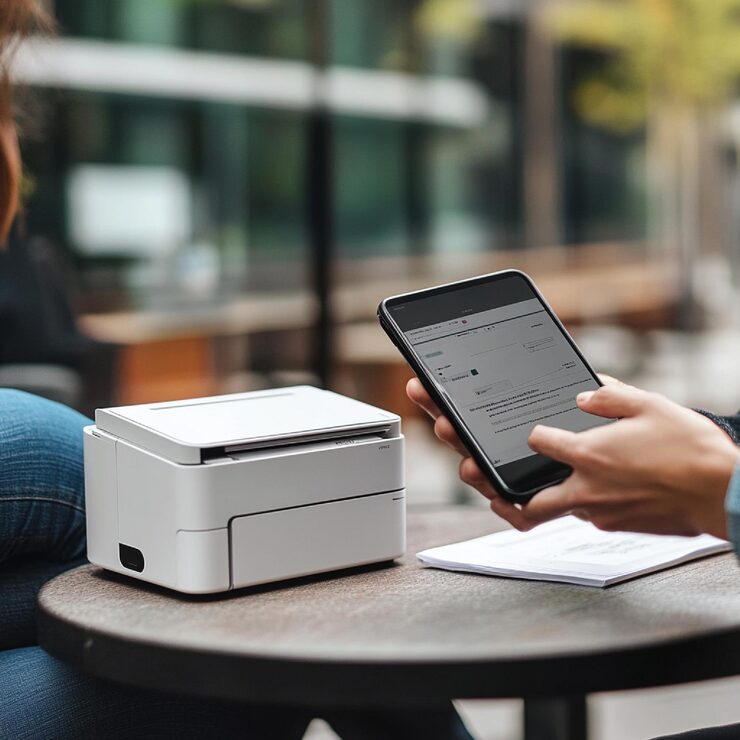
You can easily fix Wi-Fi connections, poor signals, and printers that are not online by following simple steps to connect your wireless printer.
There are several possible reasons for the non-connection between your printer and the Wi-Fi network. They may be weak Wi-Fi signals, updated passwords, incorrect networks, or perhaps outdated printing jobs. Follow the methods below to resolve the issue.
Step 1 – Turn Off the Printer & Router
To start with, switch off your printer. Next, you need to switch off your router for some period of time. Then, turn on your router and wait till the Wi-Fi lights glow green. Lastly, switch on your printer.
Step 2 – Make Sure They’re On the Same Wi-Fi Network
When multiple Wi-Fi connections exist, particularly within office premises where several floors or divisions exist, the printer will often connect to the wrong network and create connectivity problems.
3. Re-type Your Wi-Fi Password
Access the wireless network settings on your printer and select the desired network from the available options. You will be required to type your password accurately since any form of typing error will not help you connect.
4. Set up the Printer Close to the Router
Setting up your printer close to the router, either at work or at home, is highly recommended due to the weakness and interruption that may arise as a result of distance and obstacles such as walls.
5. Check for Printer Errors
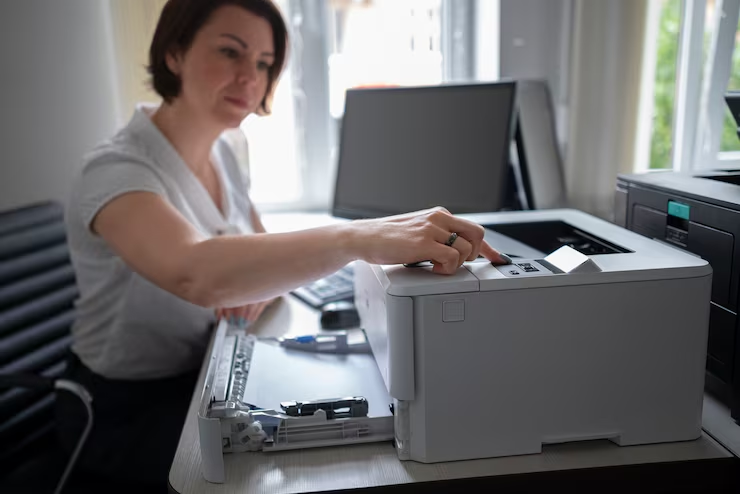
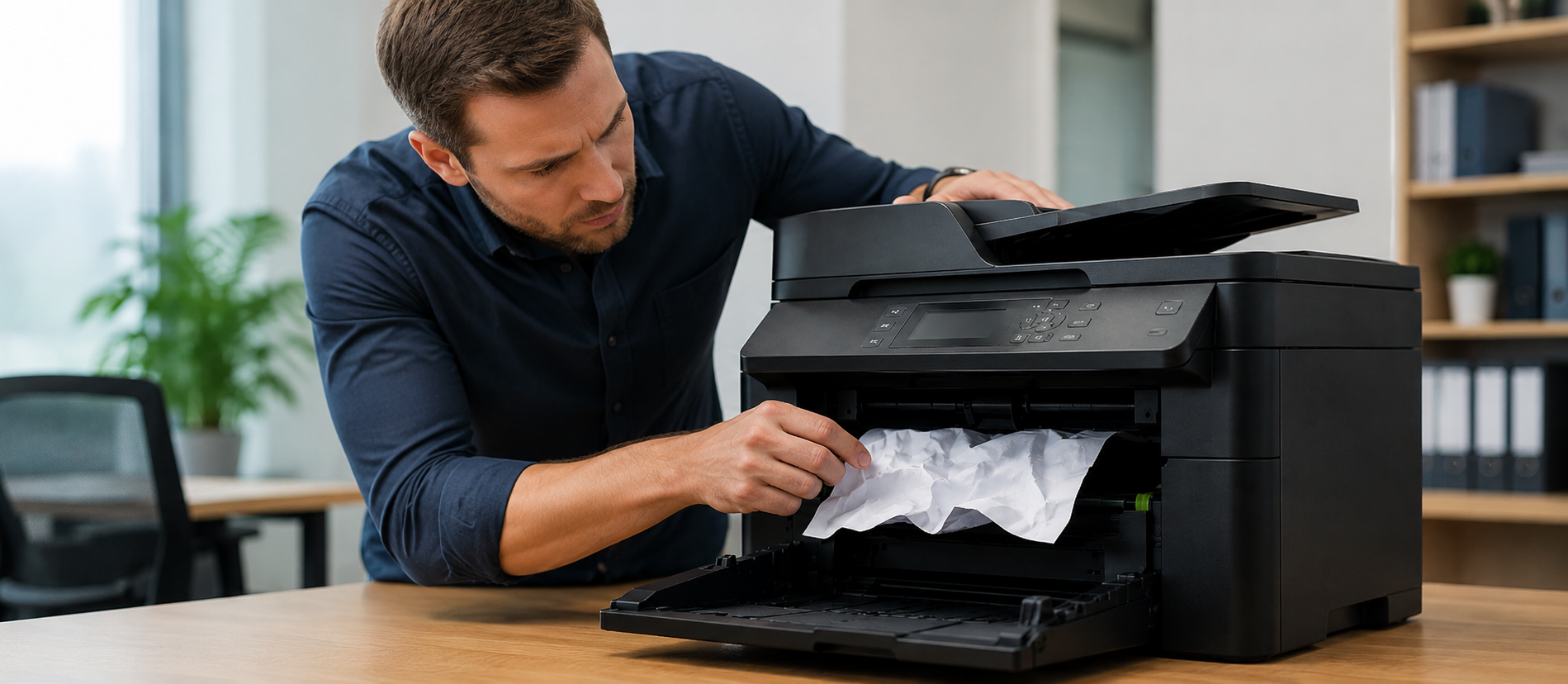
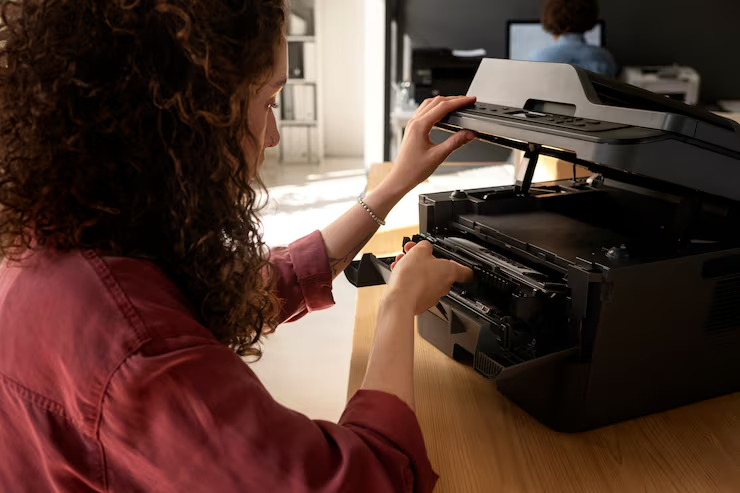
Look at the printer screen or warning lights. Paper jams, open covers, low ink, low toner, or sleep mode can stop the printer from working properly, even if Wi-Fi is available.
6. Remove the Old Printer Connection
Go to your computer or mobile printer settings and remove the saved printer. After removing it, add the printer again as a new wireless device. This can clear old connection errors.
7. Clear Stuck Print Jobs
Please open the print queue and cancel all pending documents. A stuck print job can keep the printer offline or stop new files from printing.
8. Update the Printer Driver
Install the latest printer driver or printer app on your device. Old software can create connection issues between your computer and the wireless printer.
9. Print Test Page
Print a test page after reconnecting your printer to your computer. When your document prints successfully, it means the printer is connected. In case of any issue during printing, ensure that the connection is working correctly, alongside the network configurations, printer driver, and printer status.
10. Configure the Wireless Network Connection Setting
In this step, you have to reset the wireless network connection setting of your printer.
Conclusion
There are several issues that may cause your wireless printer not to connect to Wi-Fi. Some of these issues may include network connection issues, weak signal strength, incorrect password input, print queue, and outdated printer driver software.