Update your printer drivers to fix printing errors, connection problems, offline status, and performance issues on Windows and macOS.
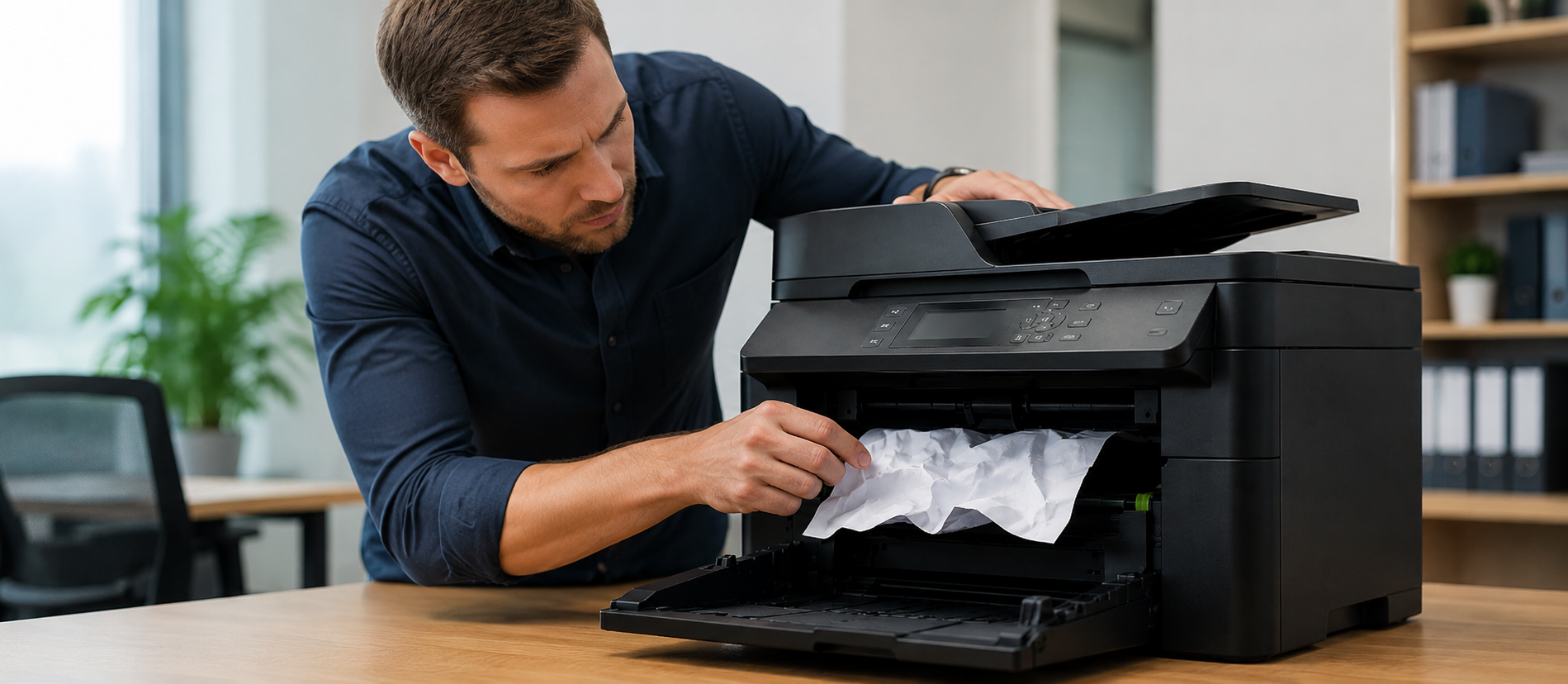
Printer drivers enable your computer to talk to your printer. Outdated, missing, or corrupted drivers may cause printer problems such as printing failures, being offline, slow printing, and connectivity problems. Driver updating is a common solution for this kind of problem.
1. Identify the Printer Problem
Before updating the driver, check what issue you are facing.
Printer not printing
The printer is showing offline
Slow printing speed
Print command not responding
Poor print quality
This information helps you understand whether the driver may be the reason.
2. Find Out the Printer Model Number
The exact model number of the printer is either written or available from the settings of the printer. This helps ensure the installation of the driver that suits your printer.
3. Remove the Old Printer Driver
If the current driver is damaged, remove it first.
For Windows:
Open your computer settings and go to the printer section to manage your saved printers.
Select your printer
Click Remove
For macOS:
Select your printer
Click Remove Printer
4. Download the Correct Driver
Install the appropriate driver software based on the make of your printer and your operating system.
5. Installation of Printer Driver
The driver package should be opened and then followed step by step according to the instructions on the screen. The printer must remain plugged in throughout the process so that the computer detects it. In case of a wireless printer, ensure that both the computer and printer are on the same network.
6. Restart Your Devices
After installation, restart your computer and printer. This helps the new driver settings apply properly and clears temporary connection errors.
7. Add the Printer Once More
It would be best if you opened up your printer settings and added the printer once more. Select the right printer name and then configure.
8. Set up Printer as Default Printer
Ensure that the printer you intend to use is set as your default printer because the print job will only be done through that printer.
9. Run a Test Print Job
Run a test print job to find out if the print job prints properly. If yes, then the printer upgrade process is successful. However, ensure you look out for any other possible errors.
10. Always Upgrade Your Printer Driver
Printers' problems usually result from having outdated printer drivers. This means that removing your old printer driver and installing a new one may solve your printer problem.
Conclusion
Printers' problems usually result from having outdated printer drivers. This means that removing your old printer driver and installing a new one may solve your printer problem.