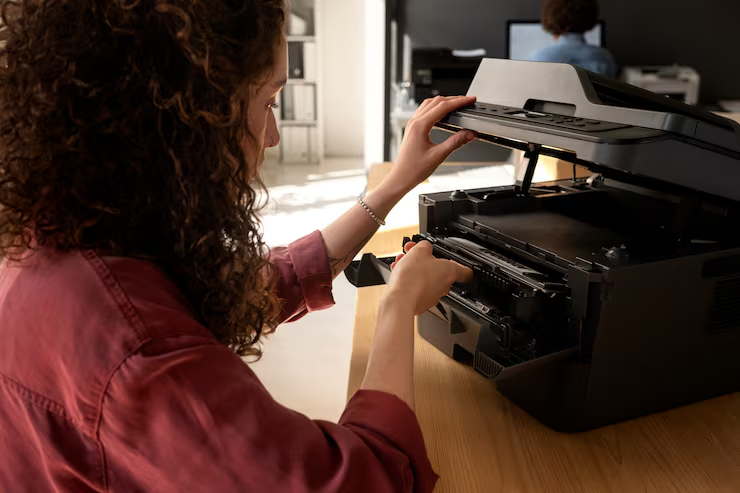
Getting your printer online can be done through establishing connections, removing any stuck printing tasks, and making sure the communication process between your printer and computer is smooth.
- Quality Support offers solutions for printer offline issues using straightforward procedures. Try these methods to bring your printer back online and resume printing immediately.
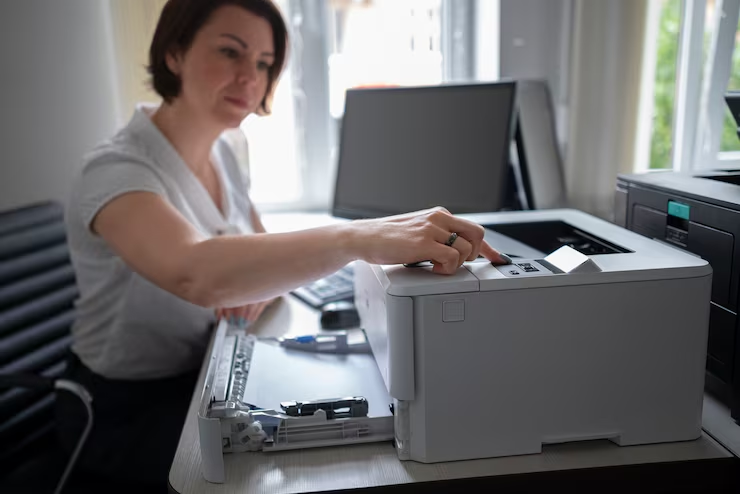
- 1. Check Printer Power Status
- Confirm your printer has power and is active
- Check if the power light is stable
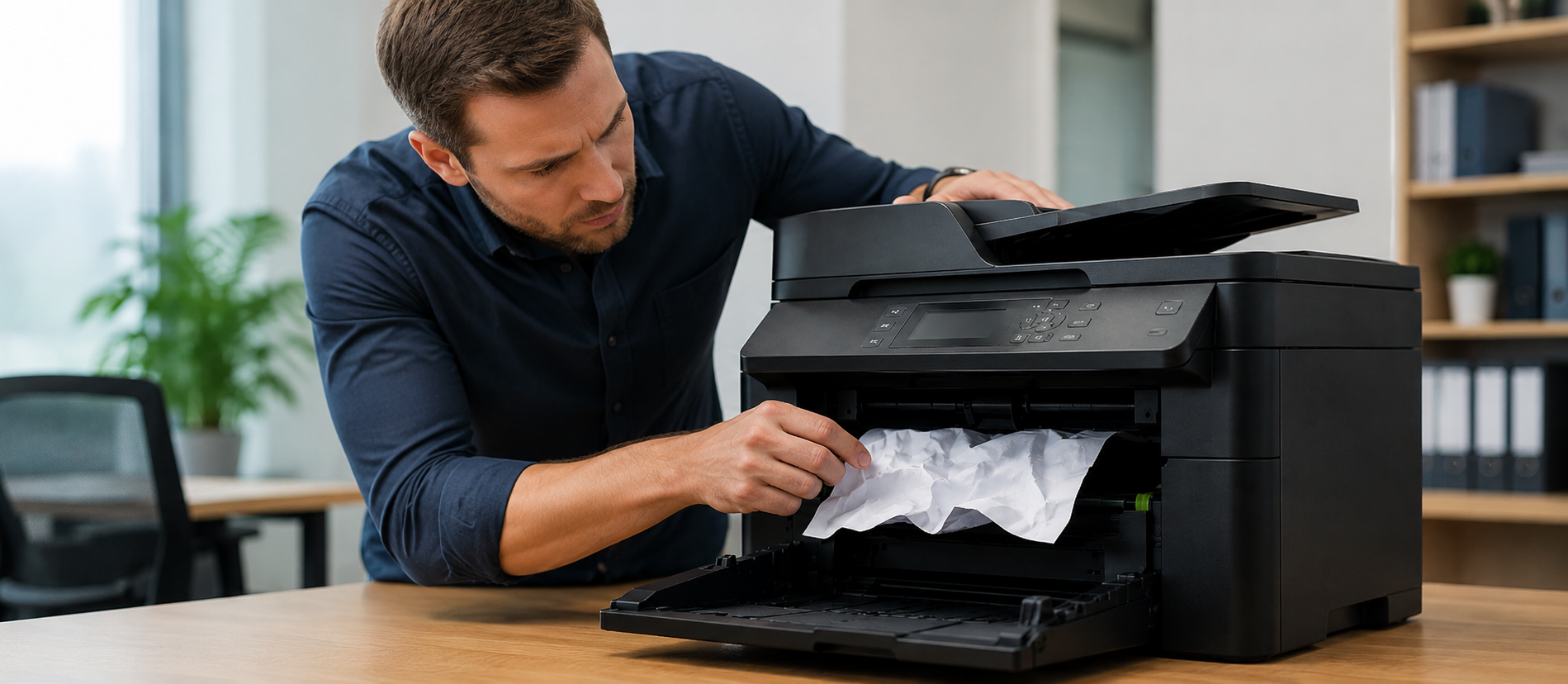
- Remove any paper jam or warning error
- Confirm the printer is not in sleep mode
- Quick tip: Turn the printer off for 30 seconds, then turn it back on.
- 2. Verify Printer Connection
- For printers connected using a USB cable, ensure that the connection cable is properly connected.
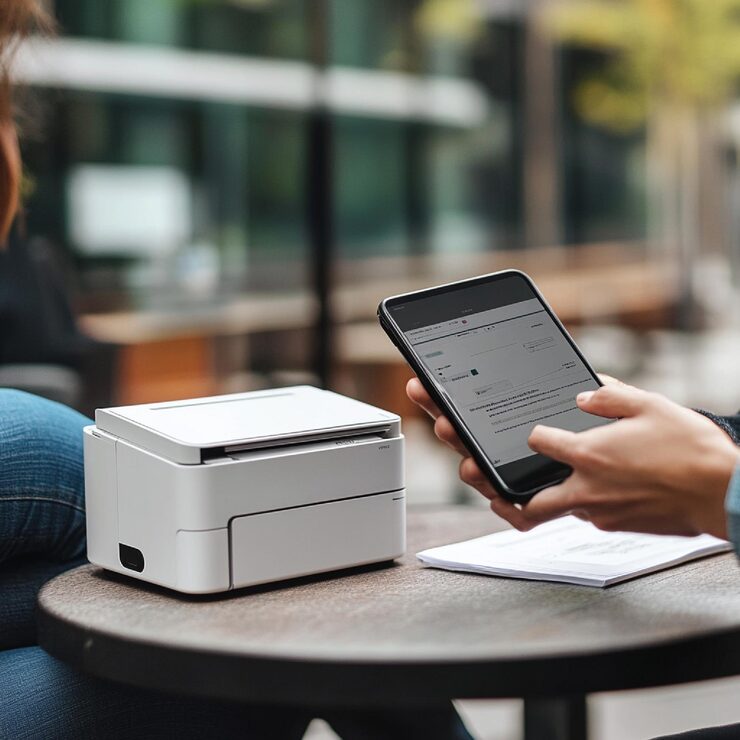
- For wireless printers, ensure that both the printer and your computer are connected to the same Wi-Fi network.
- Ensure that you move your printer closer to the Wi-Fi source, since this helps to improve the connection.
- Do not use guest Wi-Fi networks.
- A weak connection is among the leading causes of an “offline” printer error.
- 3. Restarting Your Devices
- Printers are restarted
- Computers are restarted
- Wi-Fi routers are also restarted.
- Allow some time before attempting to print again.
- 4. Set the Correct Printer as Default
- Open your printer settings
- Choose your active printer
- Set it as the default printer
- Remove old or duplicate printer names
- If you save multiple devices, your computer may send print jobs to the wrong printer.
- 5. Clear the Print Queue
- For Windows
- Go to your system settings and open printer options
- Select your printer
- Open the print queue
- Cancel all pending documents
- For macOS
- Open System Settings → Printers & Scanners
- Select your printer
- Open Print Queue
- Clear stuck print jobs
- 6. Turn Off Offline Mode
- Open the printer queue
- Check printer options
- Ensure that the “Use Printer Offline” option is disabled.
- Make sure the print queue is active and not paused
- This setting can stop the printer from receiving new print commands.
- 7. Reconnect Wireless Printer
- Open Wi-Fi setup on your printer
- Choose your correct network name
- Enter the Wi-Fi password carefully
- Print a network report if available
- If the printer changed networks, your computer may not detect it.
- 8. Update or Reinstall Printer Driver
- Open device settings
- Check for driver updates
- Remove the printer if the issue continues
- Add the printer again after restarting your device
- Driver issues can break communication between the printer and computer.
- 9. Print a Test Page
- Print a test page from printer settings
- If it prints, the printer connection is working
- If it does not print, check the network, driver, or hardware status
- A test page helps identify where the problem is coming from.
- 10. Get Help from Experts regarding Printers
- In case of CSE, the printer is still appearing offline, then it's necessary to find out if there can be any IP problems or issues with the router, printers' drivers, etc.
- Conclusion
- The problem of an offline printer may arise due to poor connectivity, wrong settings, or hung print jobs. But all these problems can be solved properly if followed in the right directions.