Get clear, sharp printouts by fixing common problems with ink, toner, printheads, paper type, or printer settings.
At Quality Support, we make print quality problems easier to understand and fix. Follow these simple steps to improve faded text, blurry images, dull colors, and unclear printouts.
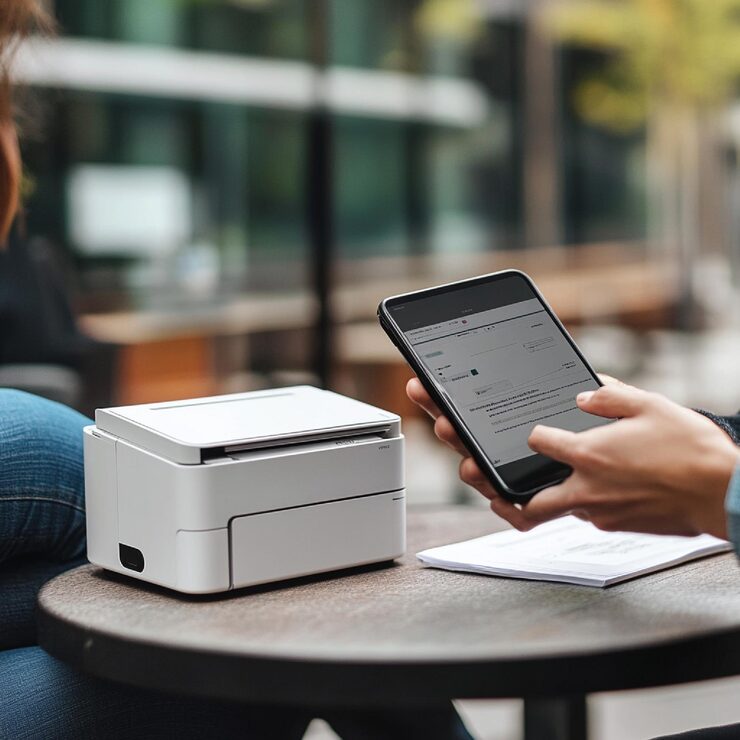
1. Check the print preview.
Before altering printer settings, ensure you have viewed the print preview from your computer. Ensure the document quality is clear and the dimensions appear correct without distortion.
2. Select High-Quality Printing
Open printer preferences and choose a higher quality mode. Draft or economy mode can make text look light, faded, or less sharp.
3. Match Paper Settings Correctly
Choose the appropriate paper type when printing as per the actual paper type used. This is because incorrect paper type selection could have an impact on ink absorption, thereby making prints appear blurred.
4. Run a Nozzle Check
Use the printer’s maintenance settings to print a nozzle check page. Missing lines or broken patterns usually mean the printhead needs cleaning.
5. Clean the Printer Head
Run the cleaning cycle from your printer software. This helps clear dried ink, dust, or blockage that can reduce print clarity.
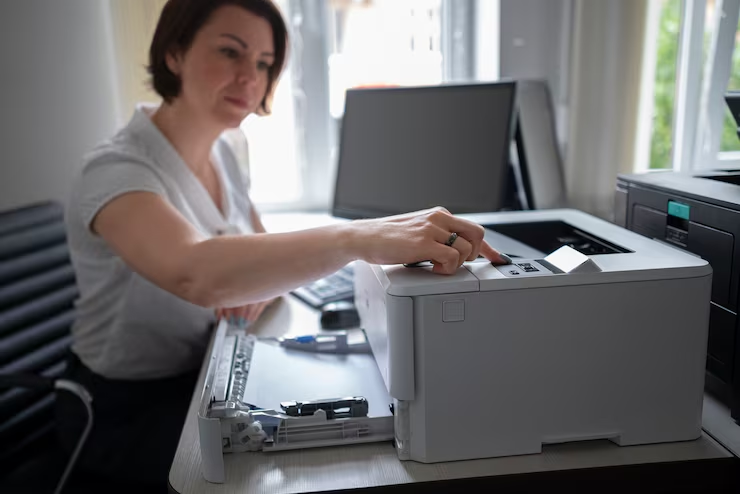
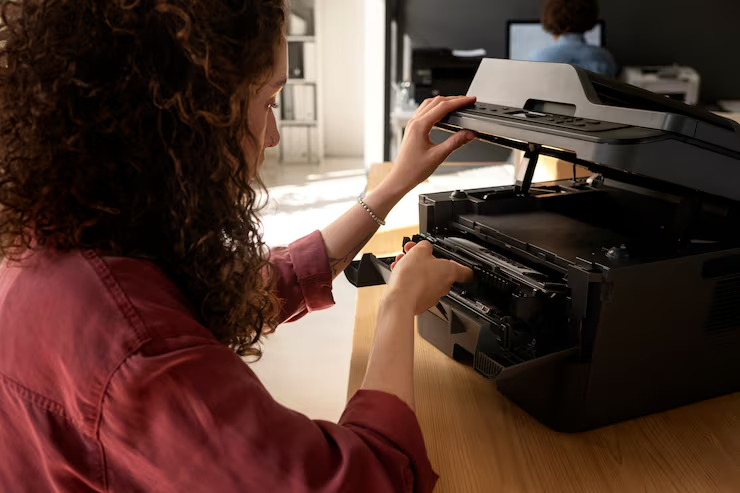
6. Inspect Cartridge Placement
Ensure that the ink/toner cartridge is placed correctly inside the machine. Improperly installed cartridges might affect the output quality.
7. Don’t Load Excessive Amounts of Paper
Try not to fill your paper tray with paper. Otherwise, it may cause paper feeding issues and smeared prints.
8. Allow Dried Ink Time to Dry
Leave time for the ink to dry before taking printed documents out. This will avoid any possible smudges.
9. Update Printer Software
Install the latest printer driver or software update. Updated drivers help your printer follow the correct print quality settings.
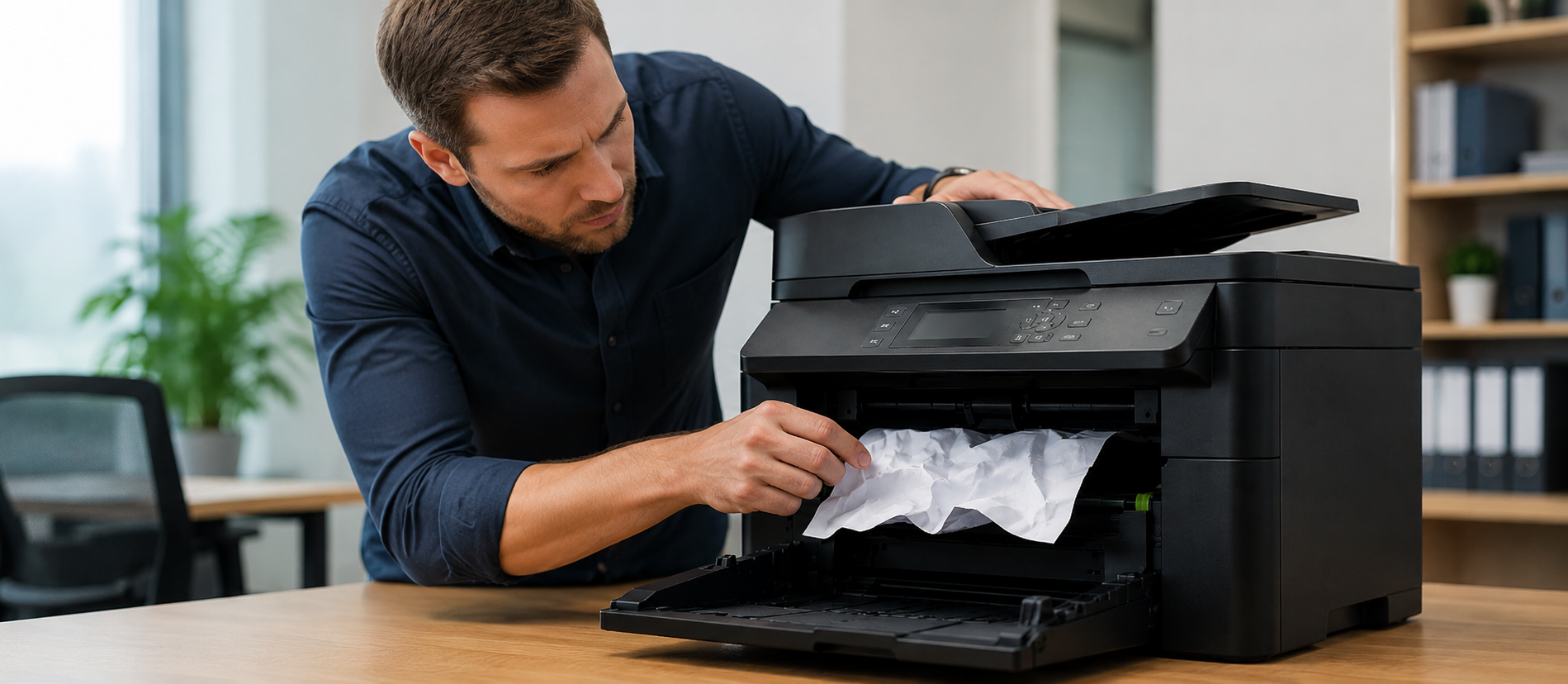
10. Get Professional Help
If the issue continues, the printer may need deeper cleaning, roller inspection, cartridge replacement, or hardware checking by a support expert.
Final Words
There are many possible causes of blurry or fuzzy print quality. However, a few simple checks can help one get clear prints that are easy to read.