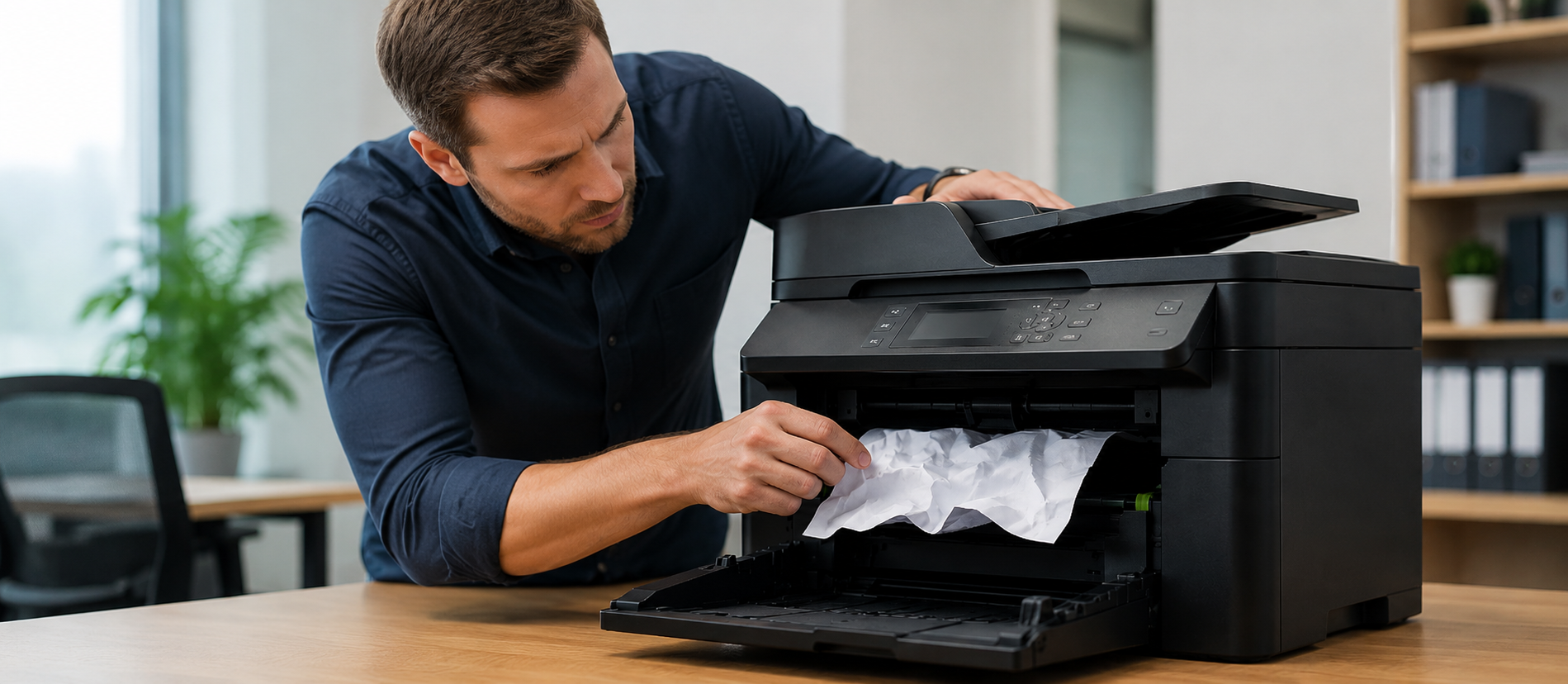
Get hints on how to fix paper jam problems right, how to solve feeding problems, and how to avoid printer jams.
A paper jam is caused when the paper is not inserted correctly, excessive paper is placed inside the tray, the rollers have been broken, or there are bits of paper that have gotten stuck inside the printer. In this manual, I will provide guidelines on how you can resolve this issue.
Step 1: Turn Off Your Printer
Before removing jammed paper from your printer, turn off your machine.
Disconnect the power plug for added safety measures.
Wait a while before opening your printer.
Step 2: Remove Paper from the Input Tray
Remove all pieces of paper from the input tray.
Remove overloaded paper stacks.
Reload only clean and properly aligned paper.
Poor paper loading is a common cause of feed problems.
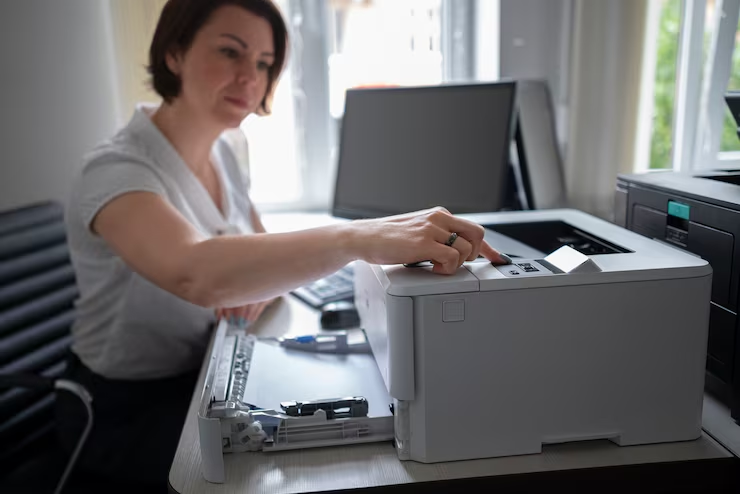
3. Open All Printer Access Areas
Open the front cover.
Inspect the rear access panel.
Open the output tray if needed.
Look inside all accessible paper paths.
Paper can get stuck in more than one area.
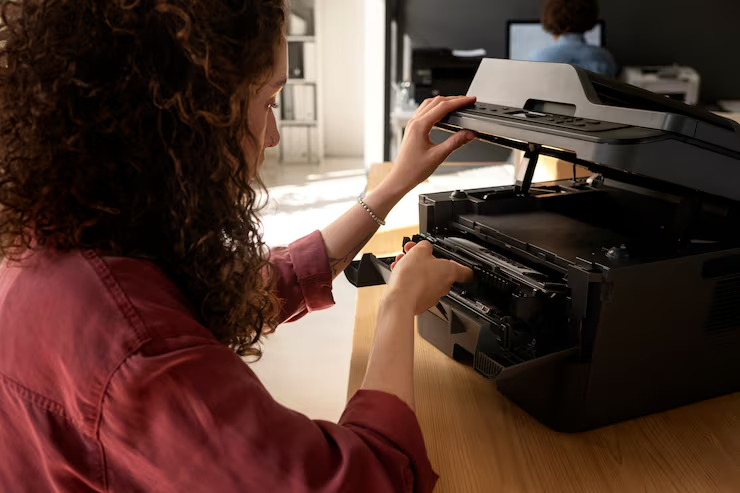
4. Remove Jammed Paper Carefully
Carefully remove the jammed paper using both hands.
Always pull in the direction of the paper path.
Avoid tearing the paper while removing it.
Remove any small torn pieces left inside.
Even tiny scraps can cause repeated jams.
5. Inspect the Rollers
Check the paper rollers of your printer.
Look for dirt, dust, paper particles, or scratches.
Dirty rollers won’t be able to feed paper properly.
Clean rollers carefully using a lint-free cloth.
6. Check the Paper Tray
Ensure that paper guides are set up correctly.
Do not overload the tray with papers.
The maximum capacity is the fill line marked on the tray.
Problems with misalignment could cause paper feeding issues.
7. Objects Removal from the Printer
Inspect the inside of your printer to see whether there are any strange objects.
Take out paper clips, labels, or paper shreds.
These tiny things may interfere with paper processing.
8. Power Down and Start the Printer Again
Shut the covers tightly.
Plug in the power cord.
Restart your printer.
Give it time to reset.
9. Try Printing Another Page
Please send a test page after you have cleared the jam.
See if the paper is fed through successfully.
The printer is fine if the page prints properly.
10. Contact Printer Company Support
In case your printer still has paper jam problems, the problem may lie in worn-out rollers in your printer or the trays and feeders. The customer support team from the manufacturer of the printer will help solve the problem.
Conclusion
Most of the printer problems relating to paper jams and paper feed can be solved by clearing the blocked paper, cleaning the roller, and properly handling the paper.