Solve your printer problems easily with solutions that are very easy to follow in a step-by-step manner.
There are many reasons why printers stop functioning, including connectivity issues, low ink levels, problems with the printing queue, printer settings issues, and many other factors. In this article, we will cover some of the most common printer problems and their solutions.
1. Start with the Basics
Open the printer queue on your computer
Remove any stuck or paused print jobs
Cancel all pending documents if needed
A blocked print queue can stop new files from printing
Try sending the document again after clearing the queue
2. Inspect Ink or Toner
Open your printer utility or control panel
Review current ink or toner levels
Replace low or empty cartridges
Run a printhead cleaning if available
Faded prints or blank pages often point to cartridge or printhead issues
3. Remove Stuck Print Jobs
For Windows
Open Control Panel → Devices & Printers
Select your printer
Open the print queue
Delete any paused or pending jobs
For macOS, choose your printer
Open the queue window
Remove any stuck print tasks
4. Resolve Offline Printer Problems
Reconnect the printer to your wireless network
Turn the router off and back on
Run the built-in printer troubleshooter
Make sure the correct printer is marked as the default
Offline errors are often caused by weak network signals or incorrect settings
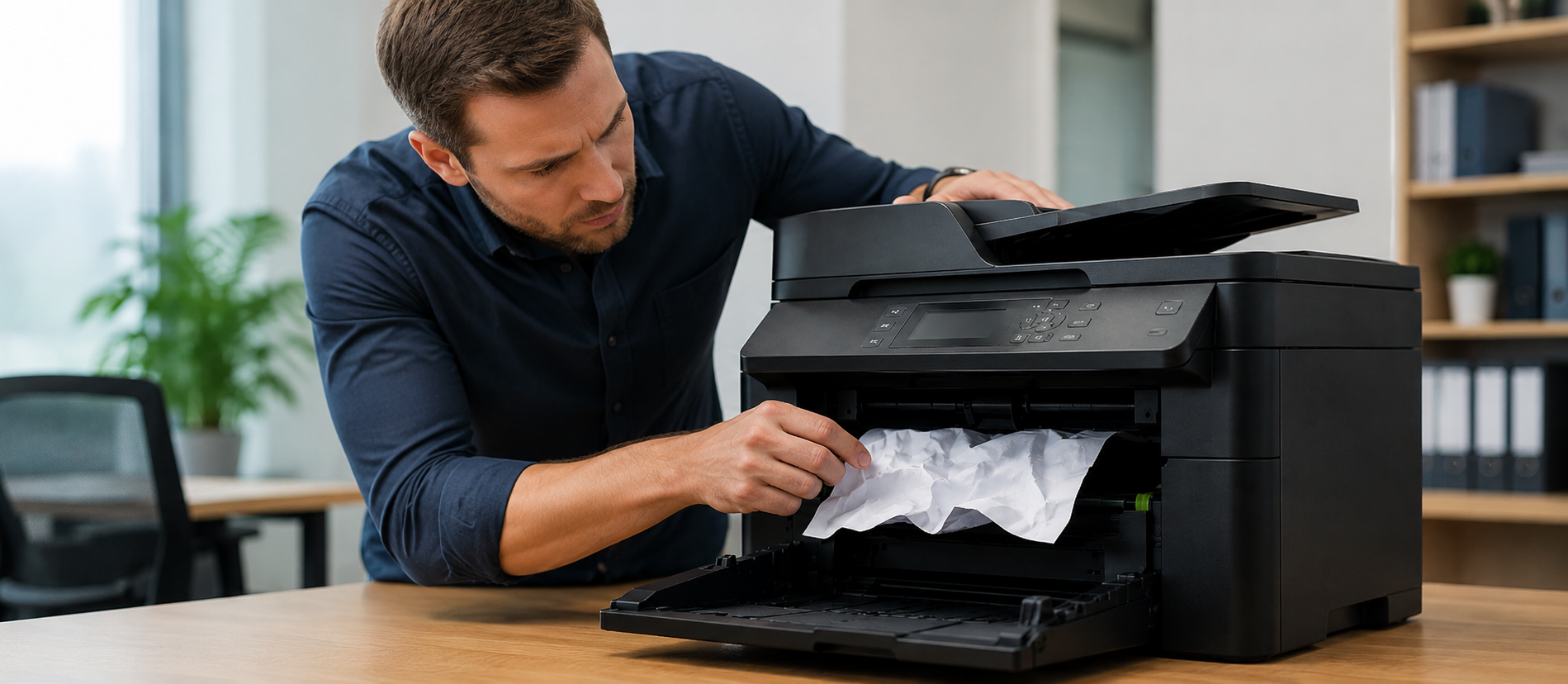
5. Look for Paper Feed Problems
Power off the printer
Inspect the paper tray and back access area carefully.
Remove any jammed or folded paper carefully
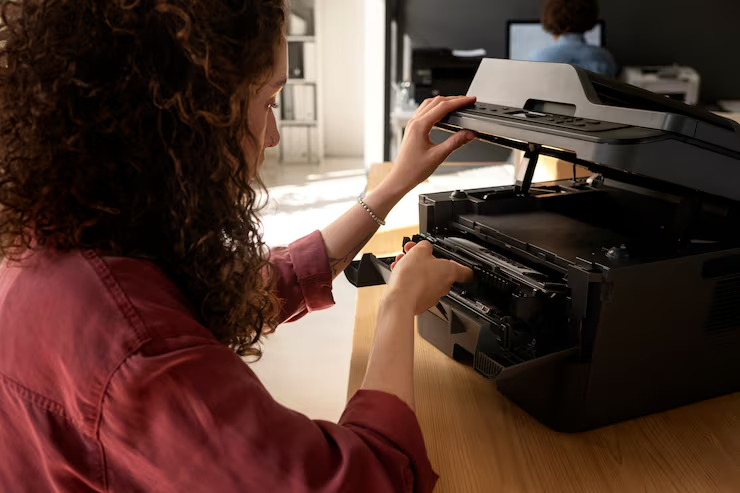
Inspect rollers for scraps or dust buildup
Reload paper evenly before restarting
6. Refresh the Printer Driver
On Windows
Open Device Manager
Locate your printer
Select Update Driver
Install the newest version if available
On macOS
Run available software updates
Remove the printer and add it again
Driver issues can block communication between the printer and the computer
7. Review Print Preferences
Confirm the correct printer is selected.
Check paper size, source tray, and print quality settings.
Make sure printing is not paused.
Verify no restrictions are blocking access.
Incorrect print settings can prevent jobs from processing properly.
8. Run a Test Print
Create a test page through printer properties.
This troubleshooting guide will enable you to determine whether the issue is either software or hardware-related. The issue must be software-related if the test page prints successfully.
If not, then the problem could be with the printer.
9. Reset Printer Settings
Reset the printer settings to restore the default configuration.
This can resolve wireless issues, setup conflicts, and hidden configuration errors.
Refer to the printer menu or manual for reset instructions.
10. Get Professional Help
Should your printer continue to fail at printing, there is likely a problem with its hardware. This scenario is when professional printer support can help.
Conclusion
The majority of printing issues come from minor problems when setting up your printer; however, they are easily fixed by checking a couple of simple things.