Fix common printing issues like blank pages, queue errors, paper jams, and offline printers with simple step-by-step solutions.
t Print & Ink Online, your shopping experience matters. Our return and refund process is simple, transparent, and designed to give you complete peace of mind.
1. Check Basic Connections
- The printer is turned ON
- Power cable is securely connected
- USB cable is firmly plugged in (for wired printers)
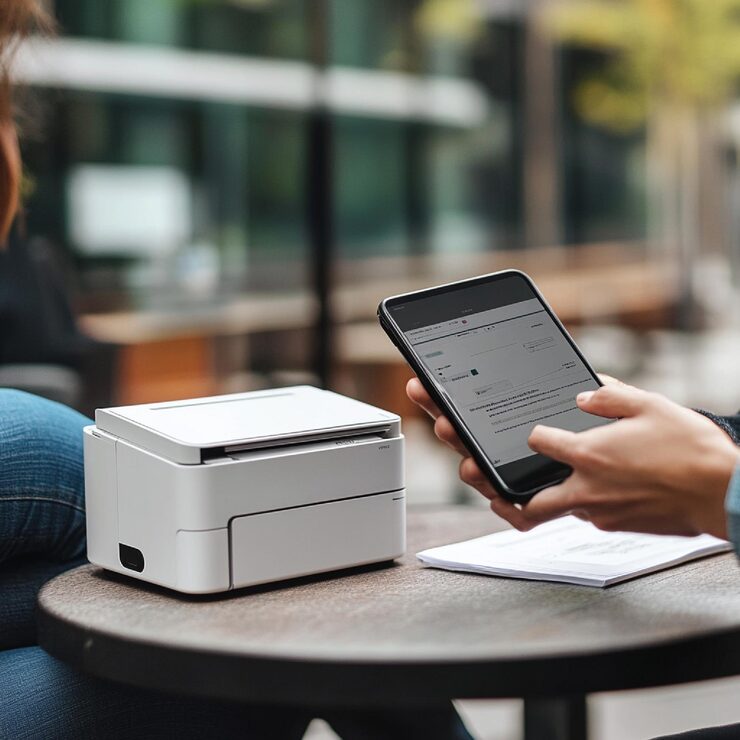
- Printer is connected to the same Wi-Fi network (for wireless printers)
- Quick tip: Restart both the printer and the computer.
2. Check Ink or Toner Levels
- Open the printer software or app
- Check the ink/toner status
- Replace or refill if required
- Clean the printhead (important for inkjet printers)
- Low or empty cartridges are a common reason for printing failure.
3. Clear the Print Queue
For Windows
- Go to Control Panel → Devices & Printers
- Right-click your printer
- Select “See what’s printing”
- Cancel all pending documents
For macOS
- Open System Settings → Printers & Scanners
- Select your printer → “Open Print Queue”
- Clear all jobs
4. Fix “Printer Offline” Error
- Reconnect the printer to Wi-Fi
- Run the Windows Printer Troubleshooter
- Restart your Wi-Fi router
- Set your printer as default
- Windows: Control Panel → Devices & Printers → Right-click → “Set as default printer”
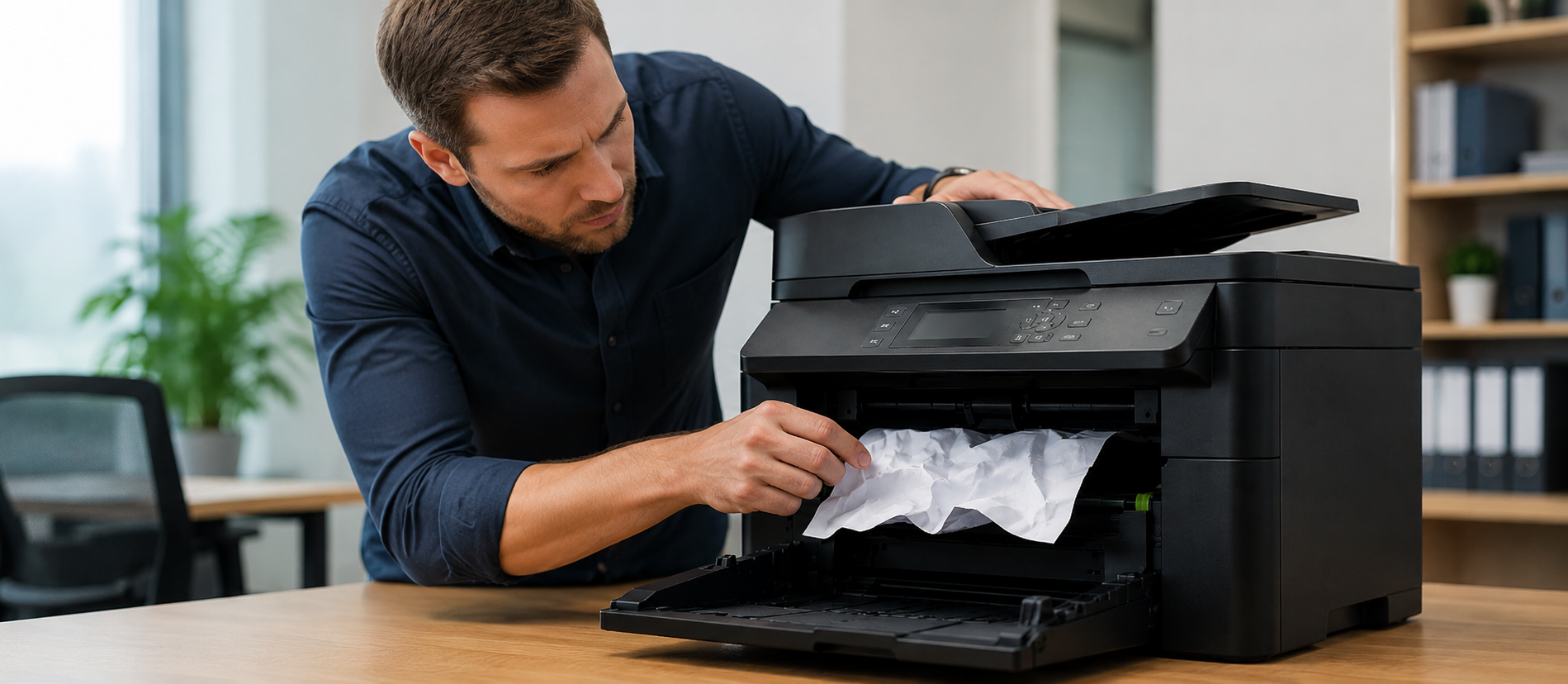
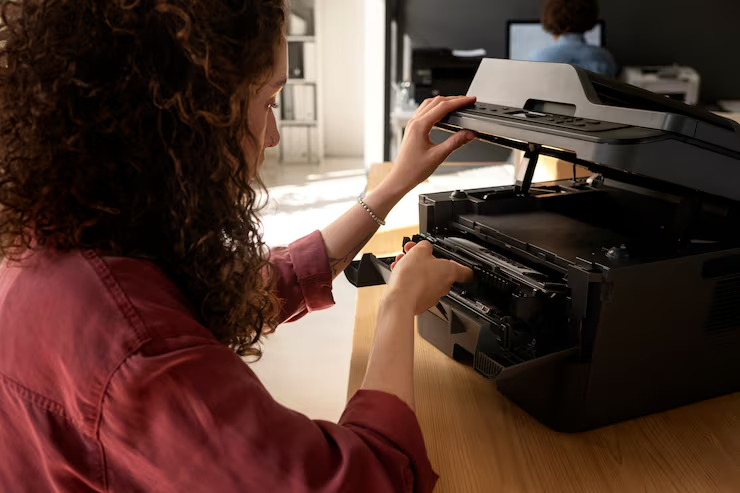
5. Check for Paper Jams
- Turn off the printer
- Open all accessible doors and trays
- Remove jammed paper carefully
- Check rollers for small pieces of paper
- Close everything properly
6. Update or Reinstall Printer Drivers
Windows
- Open Device Manager
- Expand Printers
- Right-click your printer → Update driver
- Or reinstall using manufacturer’s website (HP, Canon, Epson, Brother)
macOS
- Update macOS
- Add/remove printer again in Printer Settings
7. Check Printer Settings
- Make sure the correct printer is selected
- Check paper size & type
- Ensure “Pause Printing” is OFF
- Verify no admin restrictions exist
8. Try Printing a Test Page
This helps identify whether the issue is with the printer or the computer.
If the test page prints → software issue
If not → hardware issue
9. Reset Your Printer
Most printers have a “Factory Reset” option. This fixes network issues, software glitches, and configuration errors. Check your printer brand manual for reset steps.
10. Contact a Printer Expert
If nothing works, the issue may involve hardware like printhead, rollers, motherboard, or internal components. A technician can diagnose and fix it professionally.
Final Words
Most “printer not printing” issues are caused by simple problems like connection errors, outdated drivers, paper jams, or incorrect settings. With the steps above, you can quickly identify and fix the issue yourself.