Improve slow printing, reduce delays, and boost printer performance with easy steps for smoother and faster printing.
Low speed may be caused by the file size, lack of connection, old printer drivers, incorrect printer settings, or the existence of many printing tasks queued up.
There are many things one should do prior to purchasing another printer.
1. Restart the Printer and computer.
Turn off your printer and computer for a short time. Start both devices again and try printing a fresh document. A simple restart can clear temporary errors and slow response issues.
2. Clear the Print Queue
Open the print queue and remove old or stuck print jobs. Too many pending files can slow down the printer and stop new documents from printing quickly.
3. Use Draft or Normal Print Mode
High-quality print mode uses more ink and takes longer. For daily documents, select Draft or Normal mode from printer settings to print faster.
4. Check the Wireless Signal
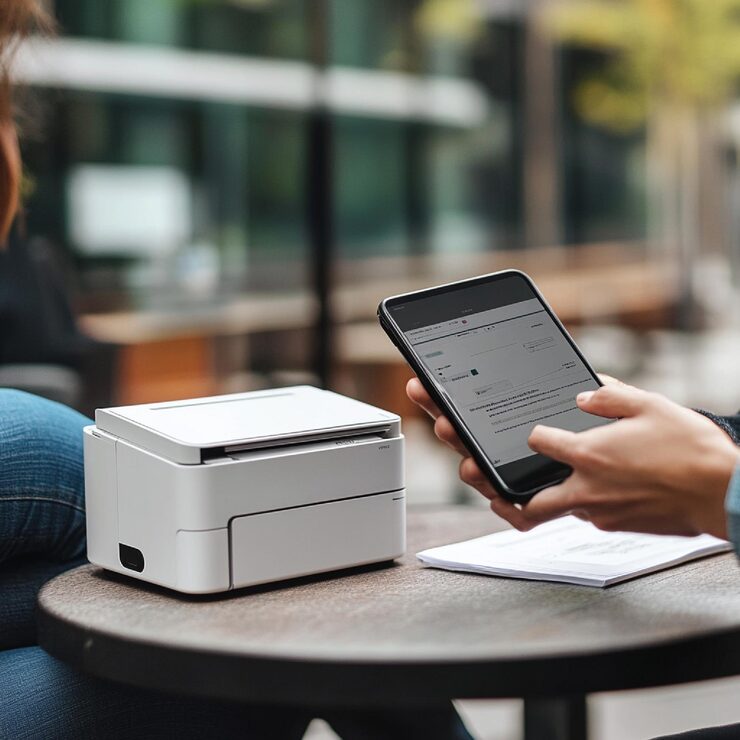
A weak Wi-Fi signal can slow down printing performance. Keep the printer near the router and avoid placing it behind walls, metal items, or large furniture. A stronger connection helps the printer receive print jobs faster.
5. Make the File Lighter
Large PDFs, images, and design files can take extra time to process. Try reducing the file size, lowering image quality slightly, or printing the document in smaller parts.
6. Install the Latest Printer Driver
An old or damaged driver can delay print commands. Update the printer driver or reinstall the printer software to help your computer and printer work smoothly together.
7. Review Print Settings
Wrong print settings can make printing slower. Check the paper size, paper type, color mode, and print quality before sending the file. Use normal or draft mode for regular documents.
8. Turn Off Double-Sided Printing
When documents are printed using both sides, the process requires time since the printer will need to reload the paper or rotate the pages. Single-sided printing will increase the speed of the printer.
9. Connect the Printer Using a Cable
Printers connected wirelessly may experience some problems during network interruptions. It is advisable that a cable be used instead, especially for larger files.
10. Clean the Printer
Low ink, toner, dirt in the printer, dirty rollers, and even stray papers in the paper tray can cause printer slowness. Therefore, clean the printer regularly.
Conclusion
The reasons for slow printers may be a weak Wi-Fi connection, large files, outdated software, wrong printer configuration, or bad maintenance.